Camera
Camera settings are used to select the camera and help the software clearly see the patient's eyes.
Local Camera
A local camera means a camera connected to the current computer, such as a built-in camera or a USB camera.
By default, the software uses the local camera.
Select the Camera Number
If the computer has multiple cameras connected, you can adjust the camera number in Settings.
Path:
Settings -> Camera -> Local Camera -> Camera Number.
Suggestions:
- Start with camera number 0.
- If no image appears, try 1, 2, and 3 in order.
- After each change, save the settings and return to the main screen to check whether the camera view is working.
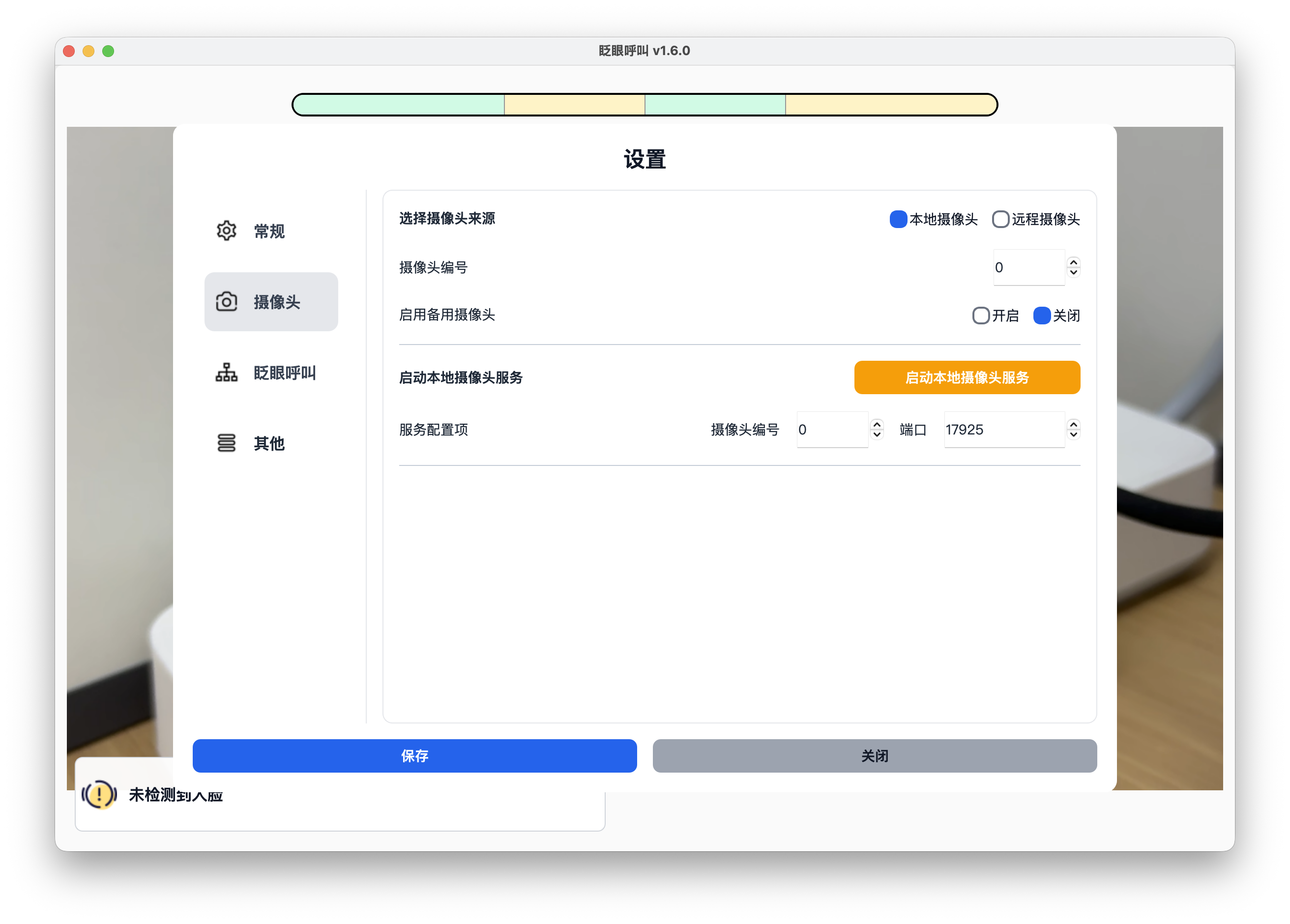
Disconnection Recovery and Fallback Camera
The software automatically reconnects a local camera after a temporary disconnection. If the computer only has one external camera, leave the fallback camera disabled. The software will keep trying to restore the feed after the device is plugged in again.
On a laptop with both built-in and external cameras, you can enable a fallback camera and enter a number different from the primary camera. If the primary camera remains unavailable, the software switches to the fallback. It does not automatically switch back during the same session, which prevents the feed from repeatedly changing.
Test the primary and fallback numbers separately before use. Windows may also list infrared or virtual cameras; do not configure those as the fallback camera.
Camera View Requirements
Both of the patient's eyes should appear fully in the camera view, and the eyes should not be covered.
Avoid:
- Placing the eyes too close to the edge of the image.
- Covering the eyes with hair, bedding, hands, or eyeglass frames.